01
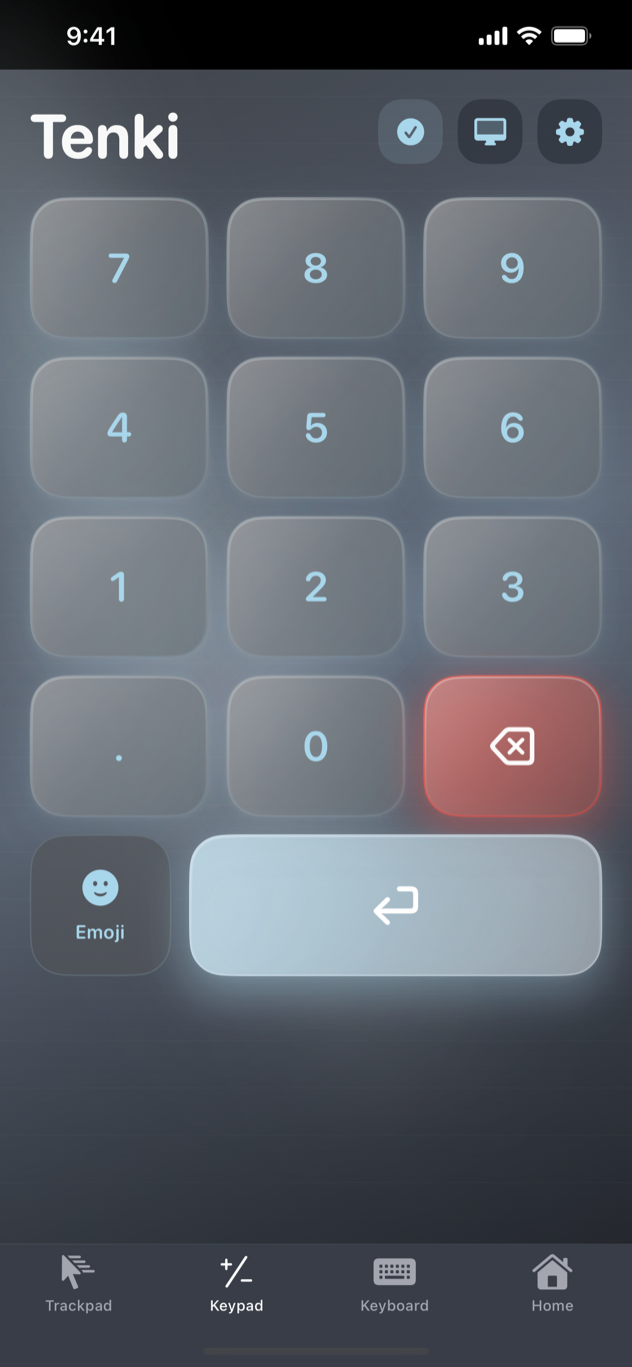
Keypad
Choose a classic ten-key or spreadsheet layout with quick access to Tab, equals, operators, clear, and Enter.
 TENKI
COMPUTER CONTROL SURFACE
TENKI
COMPUTER CONTROL SURFACE
SUBMITTED FOR APP STORE REVIEW
Tenki turns your iPhone or iPad into a tactile numpad, trackpad, and keyboard for a computer running macOS—connected directly over your local network.
LAUNCH WEEK $2.99 one-time Then $4.99 · No subscription
DESKTOP COMPANION
The companion app securely receives commands from Tenki on your local network. Install it on each computer running macOS that you want to control.
VERIFIED RELEASE
0a1278410fd1f890abb9a857dbb2468ad7cf582296413a02a6c884a6be92dd71
CONTROL SURFACES
Start with the numpad your computer leaves out, then move between three purpose-built controls without leaving the session.
Choose a classic ten-key or spreadsheet layout with quick access to Tab, equals, operators, clear, and Enter.
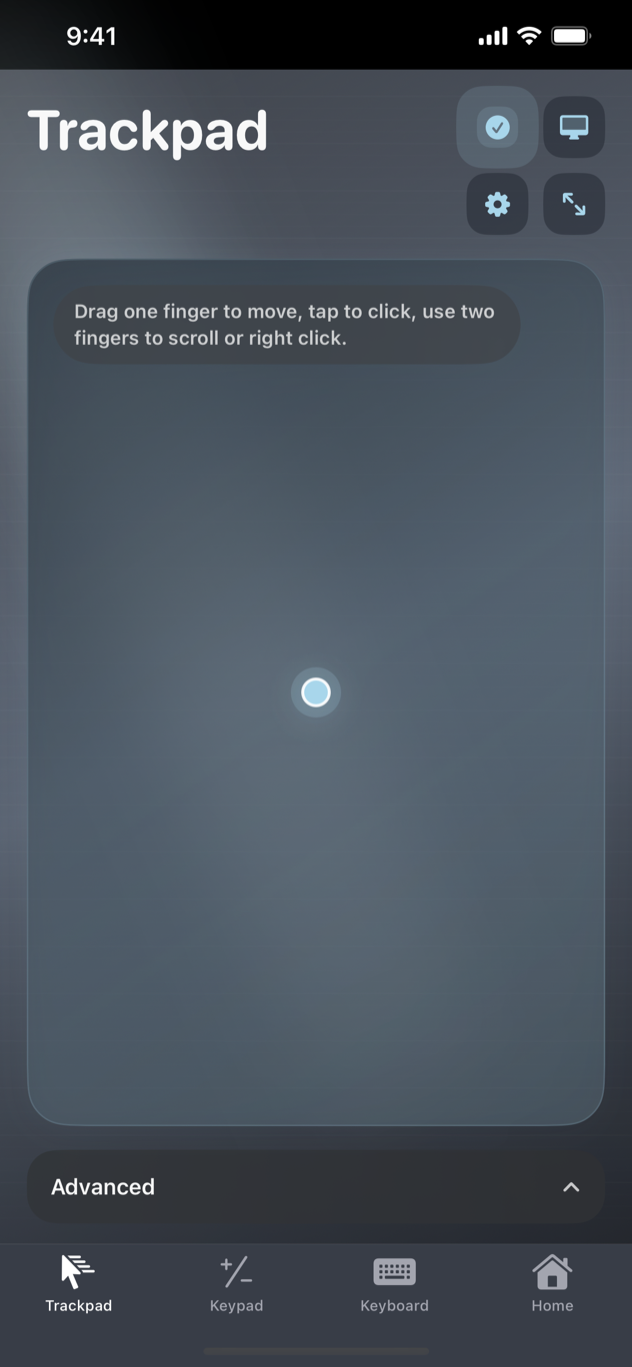
Point, click, drag, right-click, and scroll with familiar gestures and adjustable feel.
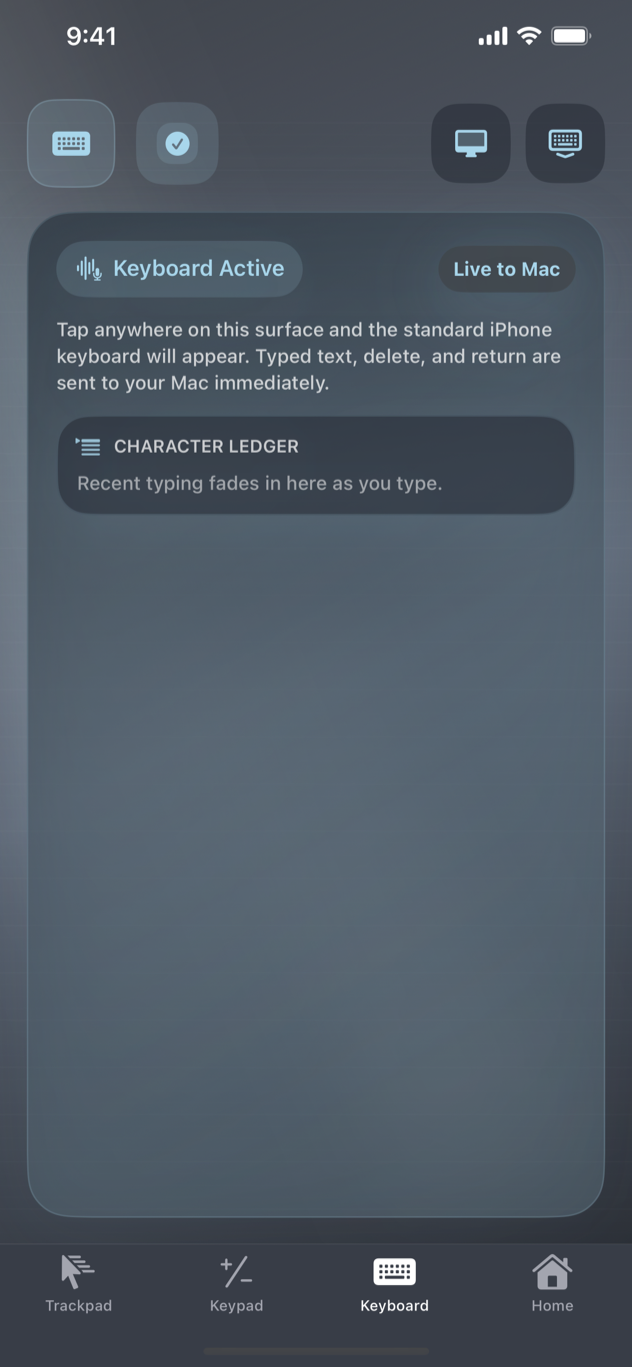
Type from your iPhone directly into the active app on your connected computer.
QUICK START
Tenki communicates locally. Keep both devices on the same network during setup and use.
Launch TenkiMac on the computer running macOS that you want to control.
In System Settings, open Privacy & Security → Accessibility and enable TenkiMac.
Open Tenki on iPhone or iPad, allow Local Network access, and select your computer from the available device list.
Use Trackpad, Keypad, or Keyboard. Your selected theme and control settings persist.
DIAGNOSTICS
Start with the connection checks below. If the problem continues, open a support request with your iPhone and macOS versions.
Confirm that TenkiMac is open and that both devices are connected to the same local network. On iPhone, open Settings → Privacy & Security → Local Network and make sure Tenki is enabled.
On the computer running macOS, open System Settings → Privacy & Security → Accessibility and enable TenkiMac. If it was already enabled, turn it off and on again, then relaunch the companion app.
Keep both devices on the same stable Wi-Fi network, move them closer to the access point, and avoid guest networks that isolate devices. Reopen the available device list and reconnect.
Open Trackpad settings to adjust sensitivity, scroll behavior, smoothing, and haptic strength. The Balanced preset is a good place to restart.
Update to the latest Tenki version. Theme, clean-theme color, keypad layout, sound, haptic, and trackpad preferences are designed to persist between launches.
PRIVATE BY DESIGN
Tenki does not require an account and does not use advertising, analytics, tracking, or cloud storage. Connection discovery and input commands stay between your devices on the local network.
STILL NEED HELP?
Tenki is developed and supported by Collin Poseley. Submit a public support request for connection problems, bug reports, general feedback, or feature ideas.